안녕하세요? 커피러브입니다.
이번에 VLN(Vision Language Navigation) 프로젝트를 준비하면서, VLN 논문들에서 대표적으로 사용하는 Simulator인 Habitat Simulator을 설치해보고자 합니다.
공식 Github Page입니다.
https://github.com/facebookresearch/habitat-sim
GitHub - facebookresearch/habitat-sim: A flexible, high-performance 3D simulator for Embodied AI research.
A flexible, high-performance 3D simulator for Embodied AI research. - facebookresearch/habitat-sim
github.com
설치 환경
제 설치 환경은 다음과 같습니다:
1. Windows11 하 WSL2에 설치된 Ubuntu 24.04.1
2. conda를 통해 가상 환경에서 설치
일단 기본적으로 여러 github issue를 봤을 때, Habitat은 Windows 환경에서의 설치를 아직 공식적으로 지원하진 않는 것 같고,
사용자 오류가 많이 발생했다고 합니다.
그래서 저와 같은 윈도우 사용자는 WSL2에 많이 설치하고 있는 듯 하고요.
그래서 저도 제 WSL2에 설치하고자 합니다.
또한, 공식 github에서 가장 추천하는 방법인, conda 가상 환경을 생성해 conda를 통해 생성하는 방식으로 설치하겠습니다.
WSL2 설치 방법:
https://cuffyluv.tistory.com/245
[Linux] Windows 11에서 WSL2 설치하고 VSCode 연동하기
안녕하세요~~ 커피러브입니다~!~~!저는 윈도우를 사용하고 있는데여.그래서 리눅스 환경에서 개발해야할 때, 지금까지는 가상화 소프트웨어로 가상 머신 돌려서 했는데,그러다보니 너무 무겁고
cuffyluv.tistory.com
제 글입니다 :)
그리고 당연하지만 WSL2 환경에 conda 설치가 필요합니다.
WSL2에 conda를 설치하는 방법:
https://datanavigator.tistory.com/62
WSL2 Ubuntu에 Anaconda 설치 및 path 설정하기
./conda init WSL2 Ubuntu에 Anaconda 설치 및 path 설정하기 1. 아나콘다를 다운로드 하기 위해 firefox 설치 wsl에 ubuntu를 설치하고 난 후에는 기본 커널 외 다른 프로그램은 거의 설치되어 있지 않기 때문에
datanavigator.tistory.com
저는 miniconda를 설치하였습니다.
참고로, 최근에는 anaconda 홈페이지에서 conda 설치를 위해서는 로그인을 하도록 바꿔놨는데,
(사실 많은 프로그램들이 그렇습니다만) 아래처럼 뒤에 /success를 붙여버리면 강제로 다운로드 페이지로 이동됩니다.
https://www.anaconda.com/download/success
Download Success | Anaconda
Your Opinion Matters! Join us for a 30-min call about your experience using Anaconda products and receive a $30 e-gift card Apply now Home Welcome to Anaconda! Ways to Get Started Choose Your Download Windows Mac Linux Anaconda Distribution Complete packag
www.anaconda.com
본격적인 설치 방법
기본적으로는 권장되는 방법인 2번째 conda를 사용해 패키지를 설치할 겁니다.
다만, repository를 통째로 clone해 와서 기본적인 examples나 코드들을 바로 test 가능하게 할 것입니다.
repository를 clone까지 하면서 4번째 방법의 직접 build하는 방식을 사용하지 않는 건, 직접 build할 경우 다음 에러가 나오는 issue가 있었기 때문입니다.
https://github.com/facebookresearch/habitat-sim/issues/2049#issuecomment-1490568606
ImportError: cannot import name 'text' from 'magnum' · Issue #2049 · facebookresearch/habitat-sim
Habitat-Sim version vx.x.x Habitat is under active development, and we advise users to restrict themselves to stable releases. Are you using the latest release version of Habitat-Sim? Your question...
github.com
원하는 경로(저같은 경우는 /home/yeonwoo-lee)에서 아래 코드를 실행해 repository를 통째로 clone해 옵니다.
git clone https://github.com/facebookresearch/habitat-sim.git
cd habitat-sim
우선, 우리가 habitat 시뮬레이터를 빌드하기 위한 가상 환경을 만들어줘야 합니다.
필요한 패키지들을 설치하고 버전을 맞춰 의존성 문제를 풀어주기 위함이라고 보면 됩니다.
conda create -n habitat python=3.9 cmake=3.14.0
conda activate habitat
이후, habitat-sim 패키지를 conda를 사용해 설치해 줍니다.
conda install habitat-sim withbullet -c conda-forge -c aihabitat또한, (conda로 패키지를 설치했기에 사실 필요 없어보이기도 하고, 안 해도 에러가 없긴 했지만) 기본적인 라이브러리들의 의존성 문제가 없게끔 requirement.txt에 제시된 것들을 설치해주도록 하겠습니다.
pip install -r requirements.txt이제 habitat-sim 패키지는 설치가 완료됐습니다.
테스트
테스트를 위해, 예제 3D scene과 예제 3D object를 불러와 주겠습니다.
python -m habitat_sim.utils.datasets_download --uids habitat_test_scenes --data-path ./habitat_data/
python -m habitat_sim.utils.datasets_download --uids habitat_example_objects --data-path ./habitat_data/
참고) 위의 명령어 문법 설명
1️⃣ python
- Python 인터프리터를 실행합니다.
- 여기서는 conda 환경 (habitat) 안에서 Python 3.9을 사용하고 있습니다.
2️⃣ -m habitat_sim.utils.datasets_download
- -m 옵션은 Python 모듈을 스크립트처럼 실행하겠다는 뜻입니다.
- 즉, Python 모듈 habitat_sim.utils.datasets_download를 실행하면, 그 모듈 안의 if __name__ == "__main__": 블록이 실행됩니다.
- 이 모듈은 Habitat Simulator에서 데이터셋 다운로드를 자동화해 주는 유틸리티입니다.
- Python에서 python -m module_name 형식은 모듈 내부의 main() 함수를 실행할 때 자주 사용됩니다.
3️⃣ --uids habitat_test_scenes
- --uids는 다운로드할 데이터셋의 ID(UID)를 지정하는 옵션입니다.
- 여기서는 habitat_test_scenes라는 테스트용 3D 씬 데이터셋을 다운로드합니다.
- 여러 UID를 한 번에 지정할 수도 있습니다:
4️⃣ --data-path ~/habitat_data/
- --data-path는 다운로드한 데이터를 저장할 디렉토리 경로를 지정합니다.
- 여기서는 홈 디렉토리(~) 아래 habitat_data 폴더에 저장하도록 설정.
- 경로가 존재하지 않으면 자동으로 생성됩니다(단, 권한이 있어야 함).
전체 의미 정리
- Python 모듈 habitat_sim.utils.datasets_download를 실행
- habitat_test_scenes 데이터셋을 다운로드
- 다운로드한 데이터는 ~/habitat_data/ 경로에 저장
발생 가능한 에러1:
이 경우, 개인 환경마다 다를 순 있지만 WSL2 환경에서 실행할 경우 아래와 같이 opengl 관련 의존성 파일을 감지하지 못해 에러가 날 수 있습니다.
ImportError: libOpenGL.so.0: cannot open shared object file: No such file or directory이를 해결하기 위해, 아래 3가지 패키지를 설치해 의존성 문제를 해결해줘야 합니다.
sudo apt install -y mesa-utils libglvnd-dev libegl-dev참고)
mesa-utils : OpenGL 테스트용 유틸리티(glxinfo 등)
libglvnd-dev : OpenGL, GLX, EGL 개발 헤더 및 라이브러리
libegl-dev : EGL 라이브러리(Habitat가 요구할 수 있음)
설치 후, 설치가 잘 되었는지 확인합니다.
`ls /usr/lib/x86_64-linux-gnu | grep libOpenGL`
ls /usr/lib/x86_64-linux-gnu | grep libOpenGL출력 예시:
libOpenGL.so
libOpenGL.so.0
libOpenGL.so.0.0.0
발생 가능한 에러2:
python -m habitat_sim.utils.datasets_download --uids habitat_test_scenes --data-path ./habitat_data/
python -m habitat_sim.utils.datasets_download --uids habitat_example_objects --data-path ./habitat_data/
이제 본격적으로 아래 코드를 실행해 데이터셋을 불러오려고 시도하면,
WSL2 환경의 경우 아래와 같은 에러가 나올 수 있습니다.
WARNING: repo datasource detected and git-lfs is not installed. Download will be limited to lfs link files instead of full assets.
subprocess.CalledProcessError: Command '['git', 'lfs', 'pull']' returned non-zero exit status 128.
Habitat 테스트 데이터는 일부 파일이 Git LFS(large file storage)로 관리되고 있어서
git lfs pull을 실행해야 완전한 데이터를 받을 수 있는데,
지금 WLS2의 우분투 초기 상태로는 Git LFS가 설치되어 있지 않은 상태여서 git lfs pull을 사용할 수 없는 겁니다.
sudo apt install git-lfs
git lfs install
위의 두 줄로 git-lfs를 설치 및 초기화해 줍니다.
python -m habitat_sim.utils.datasets_download --uids habitat_test_scenes --data-path ./habitat_data/
python -m habitat_sim.utils.datasets_download --uids habitat_example_objects --data-path ./habitat_data/
이제 다시 저희의 목표였던 데이터 셋 불러오기 코드를 수행해 줍니다.
=======================================================
Dataset (habitat_test_scenes) successfully downloaded.
Source: '/home/yeonwoo-lee/habitat_data/versioned_data/habitat_test_scenes'
Symlink: '/home/yeonwoo-lee/habitat_data/scene_datasets/habitat-test-scenes'
=======================================================
데이터 셋이 성공적으로 다운로드되면 위와 같은 프롬프트가 나옵니다.
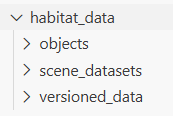
최종 데이터 셋 디렉토리 구조는 위와 같으면 됩니다.
viewer.py 실행해 키보드/마우스 입력 받기
이제 다음 단계로 가서, 사용자 입력을 받아 테스트하는 걸 실행해 보겠습니다.
우선 예제로 어떤 성 내부의 scene을 viewer.py로 실행해 테스트를 해보겠습니다..
해당 scene의 데이터 경로는 다음과 같습니다:
habitat_data/scene_datasets/habitat-test-scenes/skokloster-castle.glb
C++으로 실행하려면:
habitat-viewer ./habitat_data/scene_datasets/habitat-test-scenes/skokloster-castle.glbPython으론:
python examples/viewer.py --scene ./habitat_data/scene_datasets/habitat-test-scenes/skokloster-castle.glb
저는 지금 테스트 용도기 때문에, 익숙한 python으로 viewer.py를 실행해 보겠습니다.
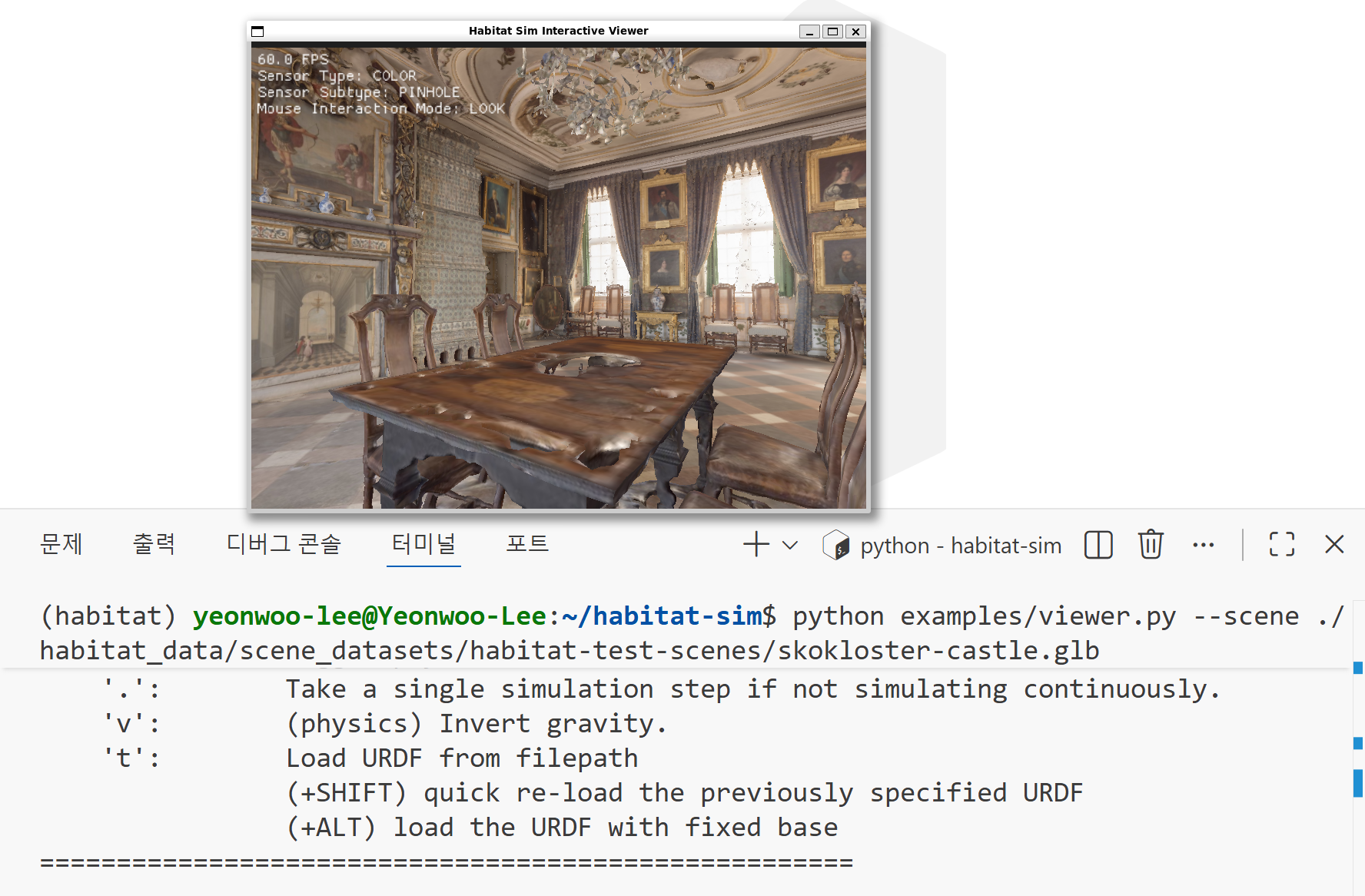
viewer.py에 해당 scene이 잘 출력되는 모습입니다.
터미널 상에 출력된 simulator interaction 조작법:
=====================================================
Welcome to the Habitat-sim Python Viewer application!
=====================================================
Mouse Functions ('m' to toggle mode):
----------------
In LOOK mode (default):
    LEFT:
        Click and drag to rotate the agent and look up/down.
    WHEEL:
        Modify orthographic camera zoom/perspective camera FOV (+SHIFT for fine grained control)

In GRAB mode (with 'enable-physics'):
    LEFT:
        Click and drag to pickup and move an object with a point-to-point constraint (e.g. ball joint).
    RIGHT:
        Click and drag to pickup and move an object with a fixed frame constraint.
    WHEEL (with picked object):
        default - Pull gripped object closer or push it away.
        (+ALT) rotate object fixed constraint frame (yaw)
        (+CTRL) rotate object fixed constraint frame (pitch)
        (+ALT+CTRL) rotate object fixed constraint frame (roll)
        (+SHIFT) amplify scroll magnitude


Key Commands:
-------------
    esc:        Exit the application.
    'h':        Display this help message.
    'm':        Cycle mouse interaction modes.

    Agent Controls:
    'wasd':     Move the agent's body forward/backward and left/right.
    'zx':       Move the agent's body up/down.
    arrow keys: Turn the agent's body left/right and camera look up/down.

    Utilities:
    'r':        Reset the simulator with the most recently loaded scene.
    'n':        Show/hide NavMesh wireframe.
                (+SHIFT) Recompute NavMesh with default settings.
                (+ALT) Re-sample the agent(camera)'s position and orientation from the NavMesh.
    ',':        Render a Bullet collision shape debug wireframe overlay (white=active, green=sleeping, blue=wants sleeping, red=can't sleep).
    'c':        Run a discrete collision detection pass and render a debug wireframe overlay showing active contact points and normals (yellow=fixed length normals, red=collision distances).
                (+SHIFT) Toggle the contact point debug render overlay on/off.
    'j'         Toggle Semantic visualization bounds (currently only Semantic Region annotations)

    Object Interactions:
    SPACE:      Toggle physics simulation on/off.
    '.':        Take a single simulation step if not simulating continuously.
    'v':        (physics) Invert gravity.
    't':        Load URDF from filepath
                (+SHIFT) quick re-load the previously specified URDF
                (+ALT) load the URDF with fixed base
=====================================================
여기까지 기본적인 시뮬레이터 환경 구성은 완료됐습니다.
이후는 아래와 같은 habitat simulator의 공식 자료들로 실습을 진행하면 될 것 같습니다.
habitat 튜토리얼 영상: https://www.youtube.com/playlist?list=PLGywud_-HlCORC0c4uj97oppQrGiB6JNy
사용되는 주피터 노트북: https://github.com/facebookresearch/habitat-sim/blob/main/examples/tutorials/notebooks/ECCV_2020_Interactivity.ipynb
공식 깃허브 페이지: https://github.com/facebookresearch/habitat-sim/tree/main
Reference:
https://github.com/facebookresearch/habitat-sim/tree/main
https://github.com/facebookresearch/habitat-sim/issues/2049#issuecomment-1490568606